
Download HotBox – Smart Full‑Screen Zoom Tool for macOS
Overview
HotBox is a lightweight, purpose‑built preference pane for macOS that turns any portion of your screen into a full‑screen view with a single keystroke. While many Mac users rely on the built‑in accessibility zoom, HotBox adds a layer of precision: you can draw a rectangle around the exact area you need to magnify, then instantly expand it to fill the display. This makes it ideal for designers, photographers, developers, or anyone who frequently works with high‑resolution images, intricate UI mockups, or detailed data tables.
The tool is free to download, runs securely within macOS’s sandboxed environment, and receives regular updates to stay compatible with the latest OS releases. Even though the initial setup involves mounting a disk image and configuring keyboard shortcuts, once configured HotBox offers a seamless, distraction‑free zoom experience. Whether you need to focus on a single pixel while retouching a photograph or zoom into a code snippet during a live demo, HotBox provides a fast, reliable, and fully customizable way to make anything full screen without cluttering your workspace.
Key Features & System Compatibility
- Customizable rectangular selection – choose any area of the screen to zoom.
- Instant full‑screen magnification with a single keyboard shortcut.
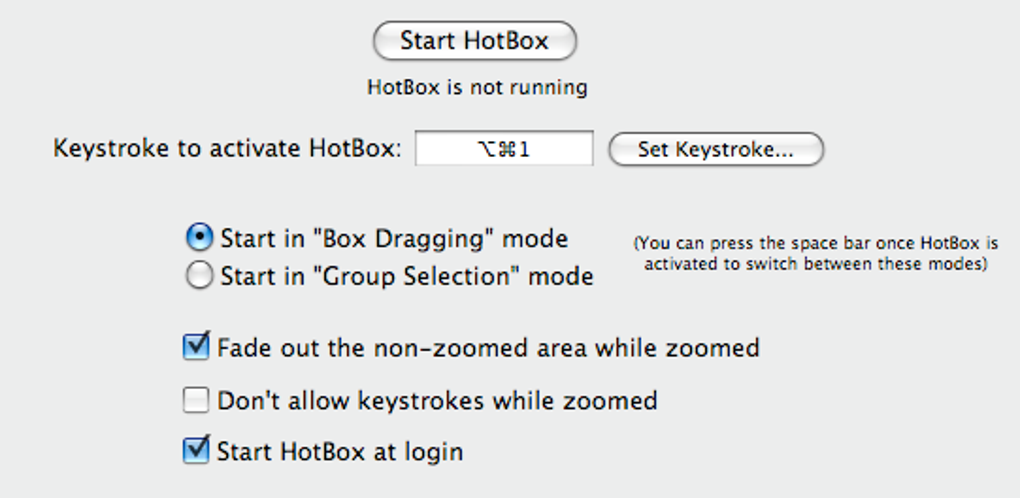
- Fade‑out mode – dim surrounding windows to keep the focus on the zoomed region.
- Adjustable zoom levels – fine‑tune how much you want to enlarge the selected area.
- Keyboard shortcut editor – assign your own hotkeys for launching, zooming in, and zooming out.
- Lightweight preference pane – runs in the background with minimal CPU and memory usage.
- Supports Retina displays – maintains crispness and clarity at high resolutions.
- Seamless integration with macOS Accessibility settings for enhanced accessibility compliance.
Operating System Support
HotBox is designed exclusively for macOS and has been tested on macOS 10.13 High Sierra through macOS 14 Sonoma. The preference pane leverages native system APIs, ensuring smooth performance on both Intel‑based Macs and Apple Silicon (M1, M2, and later). Users on older macOS versions may experience limited functionality, as the tool relies on newer accessibility frameworks introduced in macOS 10.13. For optimal security and stability, always run HotBox on a fully updated macOS release.
Installation & Usage Guide
Step‑by‑Step Installation
1. Download the Disk Image: Visit the official HotBox website and click the “Download Free” button. The file will be saved as HotBox.dmg in your Downloads folder.
2.
Mount the Image: Double‑click the .dmg file. macOS will mount it and open a window displaying the HotBox preference pane package.
3. Install the Preference Pane: Drag the HotBox.prefPane icon into the “System Preferences → Extensions” folder, or double‑click it and follow the on‑screen prompts. You may be asked to enter your administrator password.
4.
Enable the Pane: Open System Preferences, locate the new HotBox icon at the bottom, and click to open its settings.
5. Configure Keyboard Shortcuts: Navigate to “Keyboard → Shortcuts → App Shortcuts”. Add new shortcuts for “HotBox: Show”, “HotBox: Zoom In”, and “HotBox: Zoom Out”.
Recommended defaults are Control + Option + Space for launch, Control + Option + = for zoom in, and Control + Option + ‑ for zoom out.
How to Use HotBox Effectively
Once the shortcuts are set, using HotBox is straightforward. Press the launch shortcut to activate the selection cursor. Click and drag to draw a rectangle around the area you wish to magnify.
Release the mouse button, and the selected region will instantly expand to fill the entire screen. If you enable “Fade‑out mode” in the preferences, all other windows will dim, keeping your focus on the zoomed content. To exit full‑screen zoom, simply press the launch shortcut again or hit Esc.
For continuous adjustments, use the zoom‑in and zoom‑out shortcuts while the selection is active. HotBox also remembers your last used rectangle, allowing you to quickly re‑apply the same zoom area across multiple sessions.
Tips for Power Users
• Combine with Screenshot Tools: Pair HotBox with macOS’s built‑in screenshot utility (Shift + Command + 4) to capture the magnified view directly.
• Use Multiple Profiles: Create different shortcut profiles for design work versus coding sessions, each with its own default zoom level.
• Performance Monitoring: HotBox runs at a negligible CPU footprint, but if you notice lag on older Macs, try disabling “Fade‑out mode” and reducing the zoom factor.
• Stay Updated: Check the HotBox preference pane for update notifications; the developers release patches to maintain compatibility with new macOS releases and to improve stability.
Pros, Cons, FAQ, and Final Thoughts
Pros & Cons
- Pros
- Precise rectangular selection gives you control over exactly what you zoom.
- Lightweight and runs silently in the background.
- Fully customizable keyboard shortcuts fit any workflow.
- Fade‑out mode helps maintain visual focus.
- Works on both Intel and Apple Silicon Macs.
- Cons
- Initial setup requires manual shortcut configuration, which can be confusing for beginners.
- Only available for macOS; no Windows or Linux version.
- Limited advanced features (e.g., multi‑monitor support) compared to paid zoom utilities.
- Relies on a preference pane, which some users may consider less modern than a standalone app.
Frequently Asked Questions
Can HotBox be used on multiple monitors?
Yes, HotBox can zoom any area on any connected monitor, but you must activate it on the screen you intend to use. The selection rectangle works independently on each display.
Is HotBox completely free?
HotBox is offered as a free download with optional donations. There are no hidden fees or premium tiers.
Does HotBox affect system performance?
The tool is designed to be lightweight; it consumes less than 2 % of CPU resources on modern Macs and has a negligible memory footprint.
Can I customize the fade‑out opacity?
Yes, the preference pane includes a slider to adjust the opacity level of surrounding windows when fade‑out mode is enabled.
Is HotBox compatible with macOS Ventura and later?
HotBox has been tested on macOS Ventura (13) and macOS Sonoma (14). Future updates will maintain compatibility with new releases.
Conclusion & Call to Action
HotBox fills a niche that many Mac users overlook: the ability to magnify a precise portion of the screen without sacrificing the rest of the workspace. Its minimalistic design, combined with powerful customization options, makes it a valuable addition for designers, developers, and anyone who needs detailed visual focus. While the initial setup may feel a bit technical, the payoff in productivity and visual clarity is well worth the effort. If you frequently work with high‑resolution assets or need a quick way to spotlight a UI element during presentations, give HotBox a try today. Click the download button below, follow the simple installation steps, and start zooming with confidence.







